
A few years ago, the obvious use for OCR in accounts payable was data entry.
Instead of typing the supplier name, invoice number, date, GST details, amount, and line items from every bill, you could scan the document and let the software fill them in.
Accounts payable OCR software now goes further by helping move the bill through vendor matching, review, and accounting entry.
The scan itself is rarely the difficult part anymore. The bigger challenge is everything that happens around it.
One supplier emails a PDF. Another sends a bill on WhatsApp. An employee has a reimbursement receipt sitting on their phone. The accounts team still has to collect those documents, match them with the right vendor, check the extracted details, and turn them into accounting entries.
By the time that happens, the same document may already have been downloaded, forwarded, saved, uploaded, or handled more than once.
So it is worth looking beyond how quickly OCR can read an invoice. Follow the document from the moment your business receives it to the moment it reaches the books.
That gives you a clearer picture of how much manual work the software actually removes from accounts payable.
What Is the Difference Between Invoice OCR and Accounts Payable OCR?
Invoice OCR focuses on reading the document. It extracts details such as the supplier, invoice number, date, tax, amount, and line items.
Accounts payable OCR becomes more useful when that extracted information continues into the work accounts still has to do: matching the vendor, reviewing the bill, and creating the Purchase, Expense, or accounting entry.
The terminology can vary between software providers, so the label matters less than what happens after extraction.
A simple test: once the scan is complete, how many manual steps are still left before the bill reaches the books?
What Actually Happens Between Receiving a Bill and Recording It?
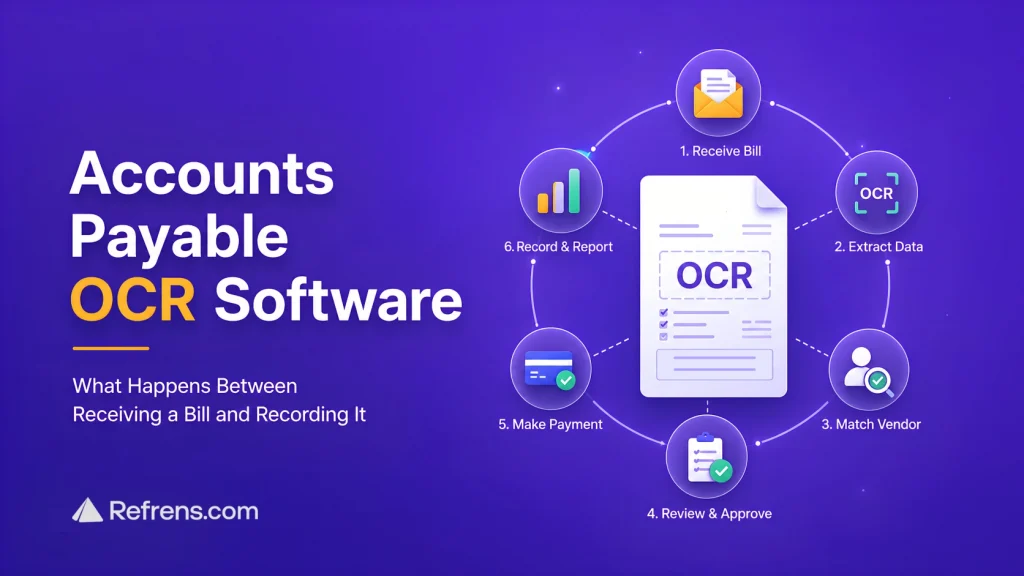
In a typical invoice-processing workflow, five things happen between receiving a document and getting it into the books: Receive → Extract → Match → Review → Record.
Each step can involve manual work.
Refrens handles this process through Refrens Eagle, its document collection and AI scanning feature.
Here is how it works in practice.
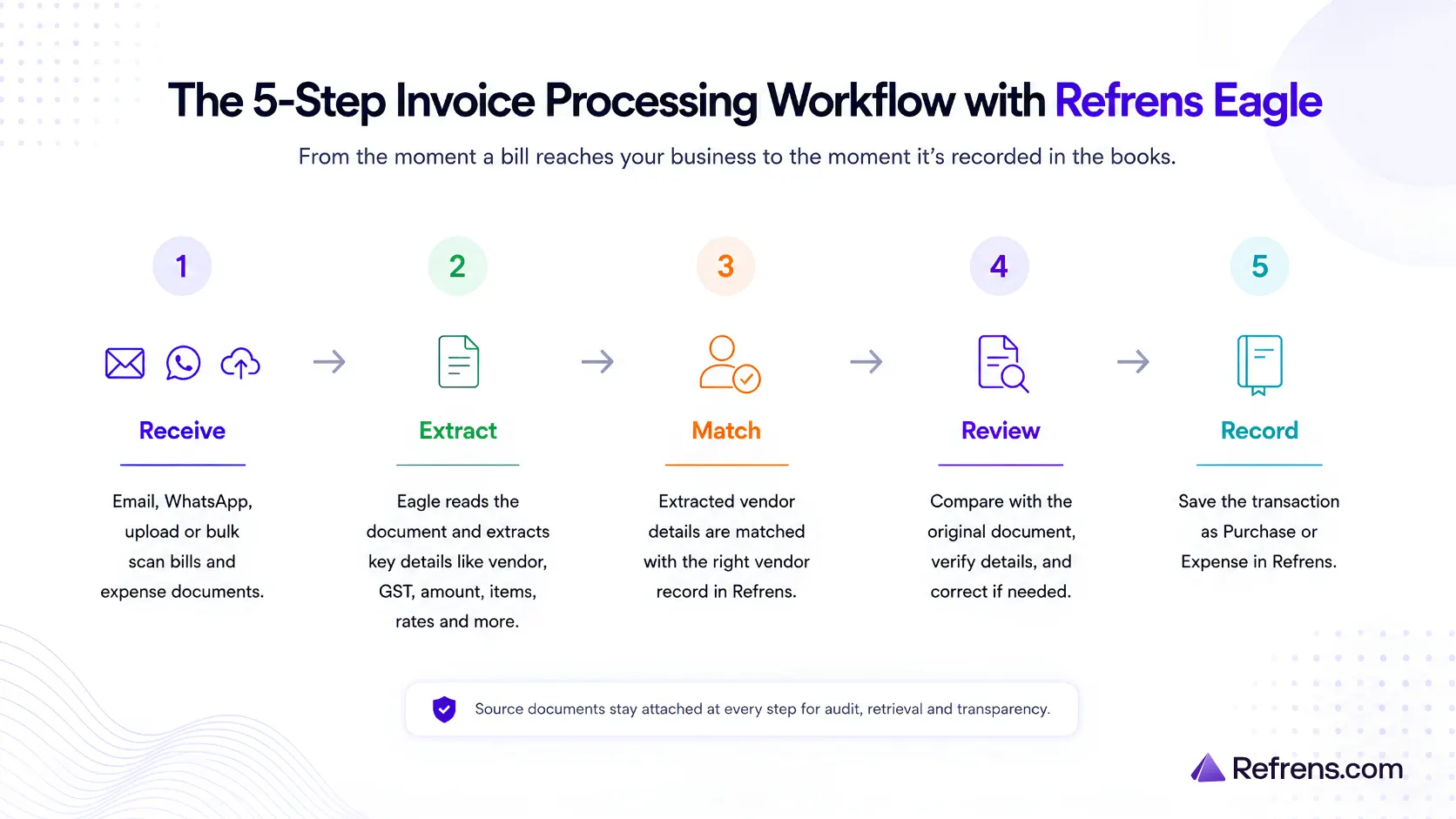
- First, the Bill Has to Reach Accounts
Most invoice OCR software demos begin with an invoice already sitting inside the system. In practice, invoices rarely arrive that neatly.
A supplier emails a PDF invoice. Another sends a photo of the bill on WhatsApp. An employee has a reimbursement receipt sitting on their phone. Until someone forwards those documents, the accounts team may not even know they exist.
Refrens Eagle supports multiple ways to bring bills into the accounting workflow:
- WhatsApp document scanning: approved internal team members can forward supported bills and expense documents to a dedicated Refrens number. WhatsApp OCR scanning can shorten the route from a bill sitting in chat to a document that accounts can review and record.
- Email forwarding: approved vendors, employees, accountants, and other senders can send documents directly to a dedicated Refrens forwarding address.
- Direct upload: accounts can upload files it already has.
- Bulk scanning: several documents can be uploaded and processed together.
Whichever route is used, the document enters the same purchase or expense scanning workflow for review. So some of the manual work is removed even before the document is scanned.
- Then the Invoice Data Has to Be Extracted
Once the document reaches Refrens, Eagle handles the invoice data extraction.
Depending on the document, that can include the vendor name, invoice number, date, GST details, amount, quantities, rates, and line items. Refrens uses this information to prepare a purchase or expense draft for review.
The OCR needs to capture the details your accounts team would otherwise have to enter manually. A small reimbursement receipt may need only a few fields. A purchase invoice with several products may require GST details, quantities, rates, and individual line items.
So an OCR demo that successfully reads the supplier name and total amount only tells you part of the story.
The more useful information the software can extract, the less your team has to enter manually afterward.
- The Supplier Has to Be Matched With the Right Vendor
Extracting a supplier name does not automatically connect the invoice with your accounting records.
Suppose the bill says ABC Industrial Supplies Pvt Ltd.
The OCR may read that perfectly. But if someone in accounts still has to open the vendor list, search for ABC Industrial Supplies, verify the record, and connect the invoice manually every time, part of the work remains.
Refrens tries to match the vendor details on the document with an existing vendor record. Your team can confirm the match or create a new vendor if the supplier is not already in Refrens.
Vendor matching is where extracted text starts becoming accounting data. That may be a small step for one invoice, but it becomes a recurring task when you process hundreds of bills.
- Someone Still Needs to Review the Scan
No invoice-scanning workflow should assume that every document will be perfect.
A supplier may send a blurry photograph. Part of a receipt may be cropped. A PDF may use an unusual layout. Some text may simply be unclear.
That is why human review remains useful even when most of the information has been extracted automatically.
Refrens shows the original document alongside the prepared purchase or expense draft. Your team can compare the two, verify the vendor and invoice details, correct anything that needs attention, and save the transaction after checking it.
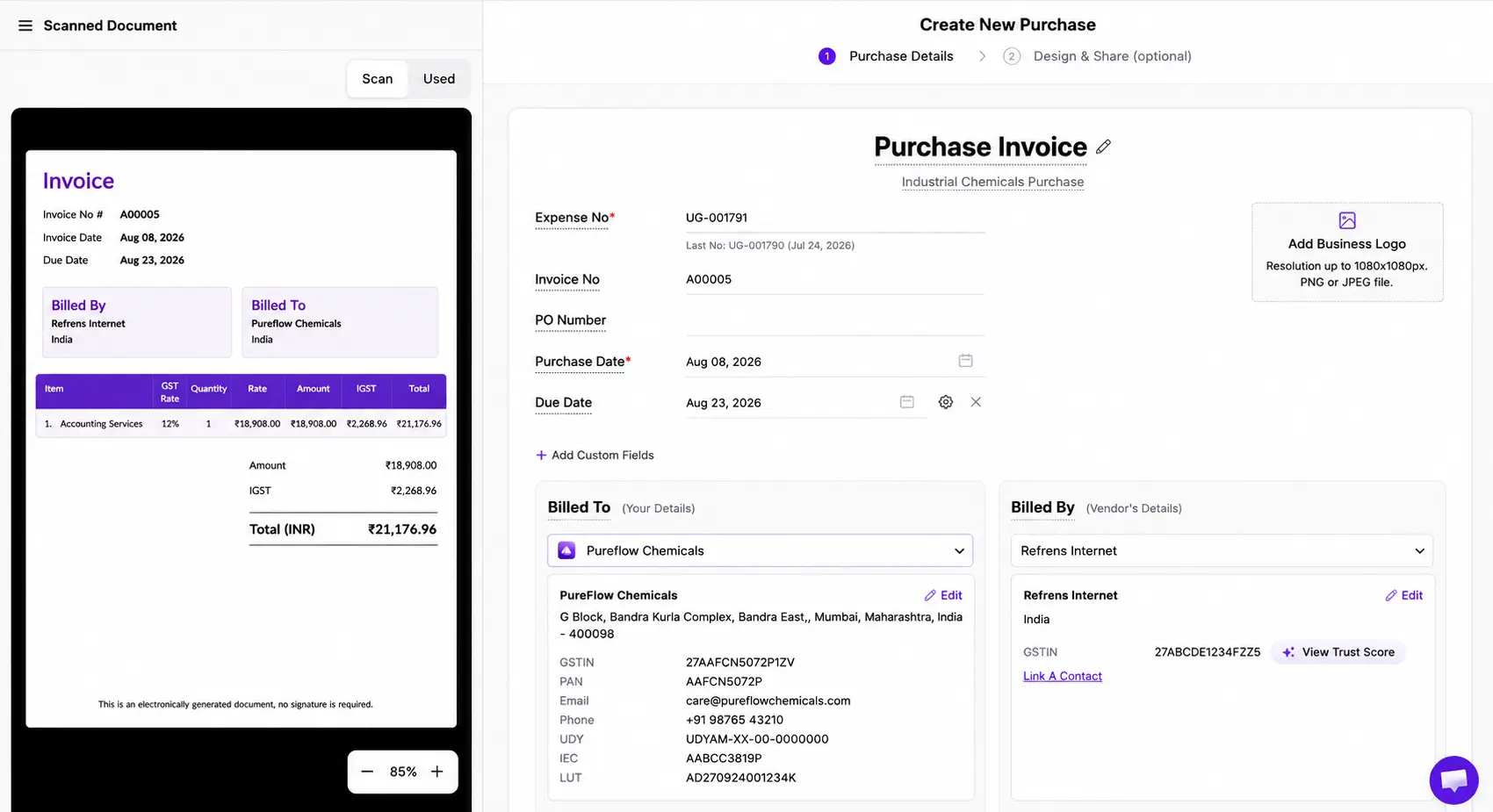
Instead of starting with an empty purchase form and copying every field from the invoice, the accounts team starts with a prepared draft. Their work shifts from entering every field to checking whether the vendor, GST details, amount, and line items are correct.
- Finally, the Bill Has to Become an Accounting Entry
Some OCR products stop once the invoice has been converted into structured data. Your team may still need to export that data, import it into an ERP or accounting system, or manually create the transaction.
With Refrens Eagle, the reviewed document can be saved as a purchase or expense inside Refrens, with the source document linked to the record.
That means the accounts team does not have to extract the information in one tool and recreate the Purchase or Expense somewhere else. The scanned bill is now an accounting entry that your team can continue working with.
Recording the Bill Is Not the End of the Workflow
Recording a Purchase or Expense is only one part of accounts payable.
The bill may still need approval. The vendor has to be paid. The payment may need reconciliation. The transaction also needs to flow into vendor records, reporting, and, where inventory is managed, stock updates.
Keeping the scanned bill connected to the accounting workflow avoids another handoff after recording. Once Refrens Eagle prepares and records the transaction, the same purchase or expense can continue through Refrens’ accounting workflows, including approvals, payments, reconciliation, reporting, and inventory.
Refrens Eagle Is Useful Beyond Vendor Bills
Supplier invoices are only one type of document accounts has to collect.
An employee may have a hotel bill, taxi receipt, food bill, or reimbursement document sitting on their phone or in their inbox. If it is not sent when it is received, accounts may only get it later during follow-up.
Refrens Eagle can process these expense documents alongside vendor invoices and purchase bills. Supported documents can enter through WhatsApp, email, or upload, and the current WhatsApp and email workflows support PDF, PNG, and JPEG files.
The document can then be scanned, reviewed, and recorded as a Purchase or Expense in Refrens.
This gives accounts one process for collecting and recording both supplier bills and employee expenses.
How AP OCR Improves Accounts Payable Efficiency
Faster data entry is one benefit of OCR. A lot of the efficiency also comes from reducing the manual work around each invoice.
1. Accounts Spends Less Time Chasing Documents
Some invoices reach accounts late because they stay in someone’s inbox, WhatsApp chat, or phone.
With Refrens Eagle, approved employees can forward bills from WhatsApp, while approved vendors can send invoices directly by email. The accounts team does not have to wait for someone else to download, save, and forward the document first.
This also reduces the number of bills that need to be chased later, especially around month-end.
2. The Same Document Gets Handled Fewer Times
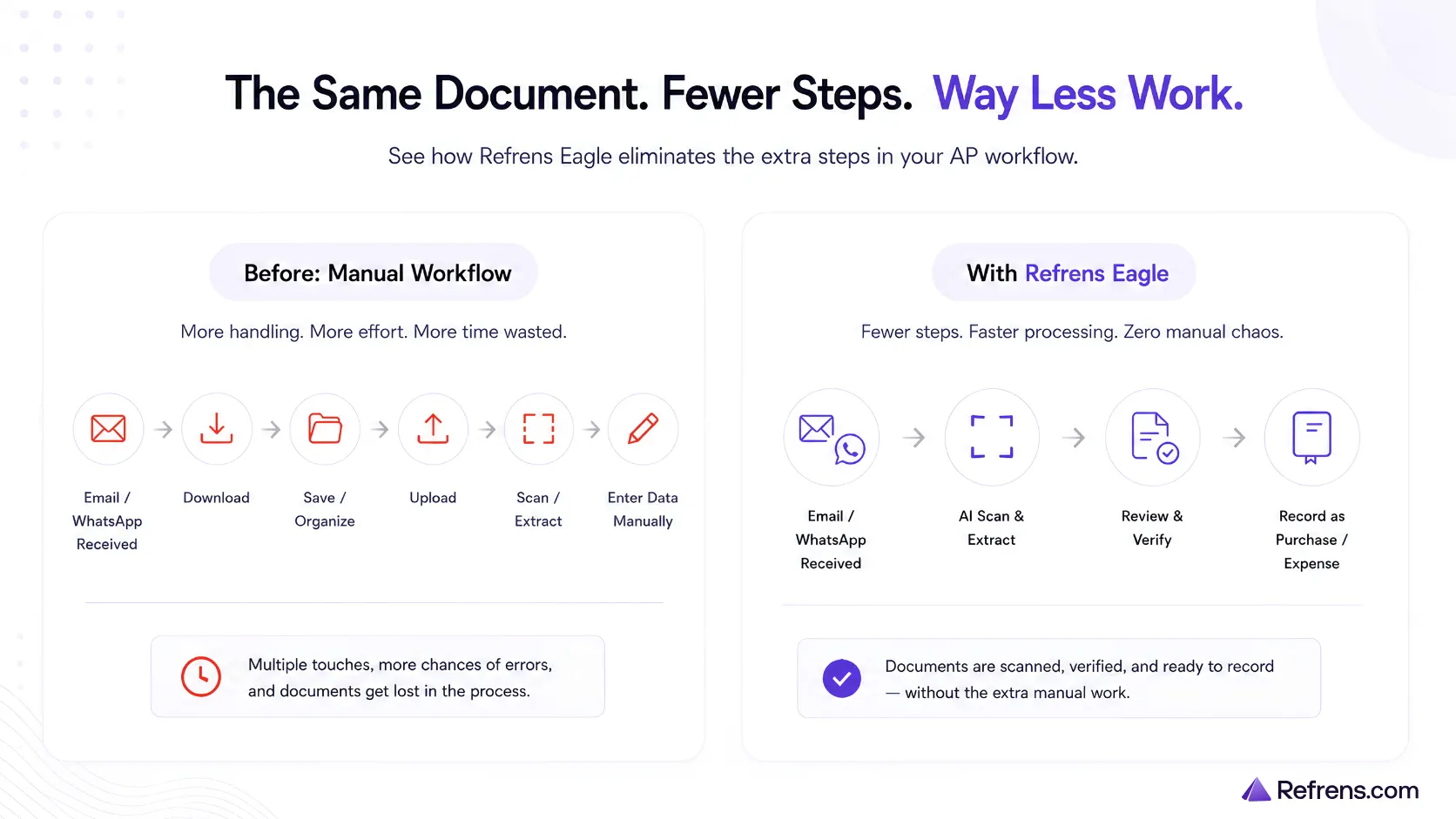
A traditional process may involve downloading an invoice from email, saving it locally, opening the accounting software, uploading it again, scanning it, and then creating the transaction.
With email forwarding in Refrens, the invoice can go directly into the scanning workflow for review and recording.
The OCR may perform similar extraction in both cases. The difference is how much manual handling happens before the invoice reaches the books.
3. Accounts Can Spend More Time Checking and Less Time Entering
With manual invoice entry, the accounts team has to enter the details first and then check them for accuracy.
OCR changes that starting point. Instead of filling an empty form, the team reviews a prepared draft and corrects only what needs attention.
That means less time spent typing vendor, GST, amount, and line-item details, and more time spent checking that the accounting entry is correct.
4. Supporting Documents Stay Easier to Find
When a scanned document is used to create a Purchase or Expense in Refrens, the original bill stays attached to that record.
If someone needs to check the transaction later, they can open the supporting document from the same place instead of searching through old emails, WhatsApp chats, or folders.
A Simple Way to Measure Whether AP Automation Is Working
You do not need a complicated metric to see whether an invoice workflow still has too much manual work.
AP efficiency metric: Manual touches per bill
Count how many times someone has to chase, move, re-enter, match, or search for information before a bill is recorded.
A manual touch can include:
- asking someone to send the document;
- downloading it;
- saving or renaming it;
- uploading it into another system;
- searching for the vendor;
- typing invoice details;
- moving extracted data into accounting software;
- searching for the original document later.
If OCR makes the scan faster but the bill still has to be downloaded, uploaded, matched manually, and recreated in the accounting system, only one part of the process has been automated.
A better workflow removes some of those touches altogether. Tracking them gives you a practical way to see whether AP automation is reducing real work for the team.
Why Small Improvements Matter More as Invoice Volume Grows
Removing two or three manual steps from one invoice may not seem significant. The impact becomes clearer when the same steps are repeated across every bill the business receives.
For example, if each invoice involves just three avoidable manual handoffs, processing 500 invoices means 1,500 extra actions before you even count approvals, payments, or reconciliation.
That is how small inefficiencies turn into a larger workload as invoice volume grows.
AP OCR becomes more useful when it removes work across the whole invoice-processing journey, not just the data-entry step. As volume increases, a better workflow should allow the business to process more invoices without increasing document handling at the same rate.
What Refrens Eagle Usage Shows in Practice
Refrens Eagle processed 26,000+ documents in its first month of beta testing, a strong early signal of how quickly businesses adopted the workflow.
For supported Indian invoices, Refrens Eagle achieves ~99% document-scanning accuracy. 71% of scanned documents matched an existing vendor, while the remaining 29% required a new vendor to be created because no matching vendor existed in the business records.
When an existing vendor is available, the vendor-matching accuracy is also ~99%.
In observed workflows, a supported document can go from scan to a prepared Purchase or Expense draft in under 20 seconds.
Early feedback from businesses that moved to Refrens from other accounting software also highlighted the scan-to-record workflow as useful, since the document could be reviewed and recorded without moving between separate tools.
Refrens Eagle Snapshot:
26,000+ documents processed
~99% OCR accuracy on supported Indian invoices
~99% vendor-matching accuracy when an existing vendor is available
Under 20 seconds from scan to prepared draft
Source: Refrens internal product and OCR usage data, August 2026.
Easier Collection Still Needs Controls
Making it easier to send financial documents into accounts raises an important question: Who is allowed to submit them?
Refrens handles WhatsApp and email differently.
For WhatsApp, documents are scanned only when they come from internal numbers that have been added to the allowed list. The dedicated Refrens number is therefore meant for approved team members, not for direct vendor use.
For email, the business can approve both internal users and external senders such as vendors, suppliers, and accountants. This allows a regular vendor to send invoices directly to the dedicated Refrens email address.
Refrens also helps accounts track what happens after an email arrives. The Inbound Message Log shows whether an incoming email is Received, Accepted, Queued, Completed, Failed, or Rejected, along with the relevant sender and processing details.
So if a vendor says, “I already sent the bill,” accounts can quickly check whether it was received and what happened afterward.
On WhatsApp, after a supported document is scanned successfully, Refrens sends a confirmation with a direct link to review the prepared Purchase or Expense draft.
The document is still reviewed before it is saved. This makes collection easier while keeping control over who can submit documents and what finally enters the books.
When Built-In OCR Is Enough, and When You Need More
Not every business needs the same accounts payable setup.
For many growing businesses, the problems are straightforward: bills arrive in different places, the accounts team has to chase people for documents, Purchase and Expense entry takes time, and payments and reconciliation need to stay connected with the books.
In that setup, Refrens Eagle brings document collection and OCR into Refrens’ AI accounting software, keeping purchases, expenses, approvals, payments, reconciliation, inventory, and accounting connected in the same system.
The requirement changes when accounts payable becomes more complex. A large enterprise may process thousands of invoices across multiple entities, need several levels of approval, depend heavily on purchase-order matching, or require specialised controls and integrations with an existing ERP.
In that case, a dedicated AP automation platform can make more sense because it is built to handle those additional processes before the invoice reaches the ERP.
In practice, the two setups look different:
Dedicated AP platform: invoice capture and AP processing → existing ERP
Refrens Eagle: document capture and OCR → Purchase or Expense → accounting workflow in Refrens
So the decision is less about which product has the most advanced OCR and more about how your finance system is set up.
If your business already relies on a large ERP and needs specialised AP processes around it, a separate AP platform may be useful.
If you want document capture, Purchases, Expenses, approvals, payments, reconciliation, inventory, and accounting to stay connected in one broader system, built-in OCR can mean fewer systems and fewer handoffs.
What to Check Before You Choose Accounts Payable OCR Software
The easiest way to evaluate AP OCR software is to take one real invoice from your business and follow it from the moment it arrives until it is recorded.
| Ask this | Why it matters |
| Where do our bills actually arrive? | If invoices come through email, WhatsApp, employees, or shared folders, check how much manual work is needed to get them into the software. |
| What information does the OCR extract? | A simple expense may need only basic details, while a Purchase invoice may require GST details, quantities, rates, and line items. |
| Can it match existing vendors? | Otherwise, accounts still has to find the correct vendor and connect the invoice manually. |
| How easy is the review process? | Your team should be able to compare the original bill with the extracted information and correct mistakes quickly. |
| What happens after the scan? | Does the software leave you with extracted data, or does it create the voucher, Purchase, Expense, or ERP entry you actually need? |
| What happens after it is recorded? | Check whether approvals, payments, reconciliation, inventory, vendor records, and reporting remain connected to the same transaction. |
| What controls exist around document intake? | Finance should know who can submit documents, whether they were processed successfully, and what happens when something fails. |
Use one of your own vendor invoices to test these questions instead of relying only on a product demo.
A demo shows you how well the software can read a document. Your own invoice workflow shows you how much manual work it can actually remove.
If you are comparing products available in India, see our guide to the best OCR software for invoice processing in India.
What Good AP OCR Should Actually Change
The value of AP OCR comes from reducing the manual work involved in collecting, checking, and recording each bill.
If fewer documents need to be chased, downloaded, uploaded, re-entered, or recreated along the way, the workflow is doing its job.
In practice, that means getting bills into the books with fewer manual steps.
Let Refrens Eagle bring bills from WhatsApp and email into your Purchase & Expense workflow for review.
Frequently Asked Questions
- Does Refrens Eagle automatically record every bill it scans?
No. Refrens Eagle prepares the Purchase or Expense for review first. Your team can compare the scanned details with the original document, correct anything that needs attention, confirm the vendor, and then save the transaction.
- What happens if Refrens Eagle cannot match the vendor?
You can review the vendor suggested from the scanned document and connect it with the correct existing vendor. If the supplier is not already in Refrens, you can create a new vendor before saving the Purchase or Expense.
- Can vendors send their invoices directly to Refrens?
Yes, through email. Approved vendors and other external senders can send supported documents directly to the business’s dedicated Refrens email address. This removes the need for someone inside the company to receive the invoice first and upload it manually.
WhatsApp works differently: the dedicated WhatsApp number is intended for approved internal team members.
- How can accounts check whether an emailed invoice was actually processed?
Refrens provides an Inbound Message Log for incoming email submissions. Accounts can see whether an email is Received, Accepted, Queued, Completed, Failed, or Rejected, along with details that help identify what happened when processing does not complete successfully. This is especially useful when a vendor says they have already sent an invoice.
- Can Refrens Eagle process several bills at once?
Yes. If the accounts team already has multiple documents to process, Refrens supports bulk scanning instead of requiring every bill to be uploaded and handled individually. This is useful for backlogs, month-end processing, or batches of documents already collected by the accounts team.
Related Posts:
 Why Your Accounting Software Should Have WhatsApp OCR Scanning
 Best Invoice OCR Software in India: Top 5 Tools Compared
 Top 15 Vendor Management Software in India for 2026: Features, Pricing, Ratings & Reviews
 Vendor Onboarding Process: Steps, Checklist & Documents
 10 Best AI OCR Invoicing Software for Invoice Scanning and Accounting Automation
 Vendor Approval Process: Prequalification, Vetting, Due Diligence & Risk Checks
 A Complete Guide to the Types of Invoices
 The Ultimate Guide to Bill of Supply Under GST
 Everything To Know About e-Way Bills
 Everything You Need to Know About Purchase Orders: A Complete Guide
 Top 9 Expense Management Software in India
 Best Accounting Software in India: Features, Pricing, Reviews, and more (Updated 2026 List)
 E-Way Bill Penalty: Everything You Need To Know
 Top AI accounting Software in India
 Everything To Know About GSTR 3
 Top Accounts Receivable Accounting Software (Updated 2026 List)
 Top 8 e-Way Bill Software (Updated 2024 List)
 Best Supplier Invoice Software